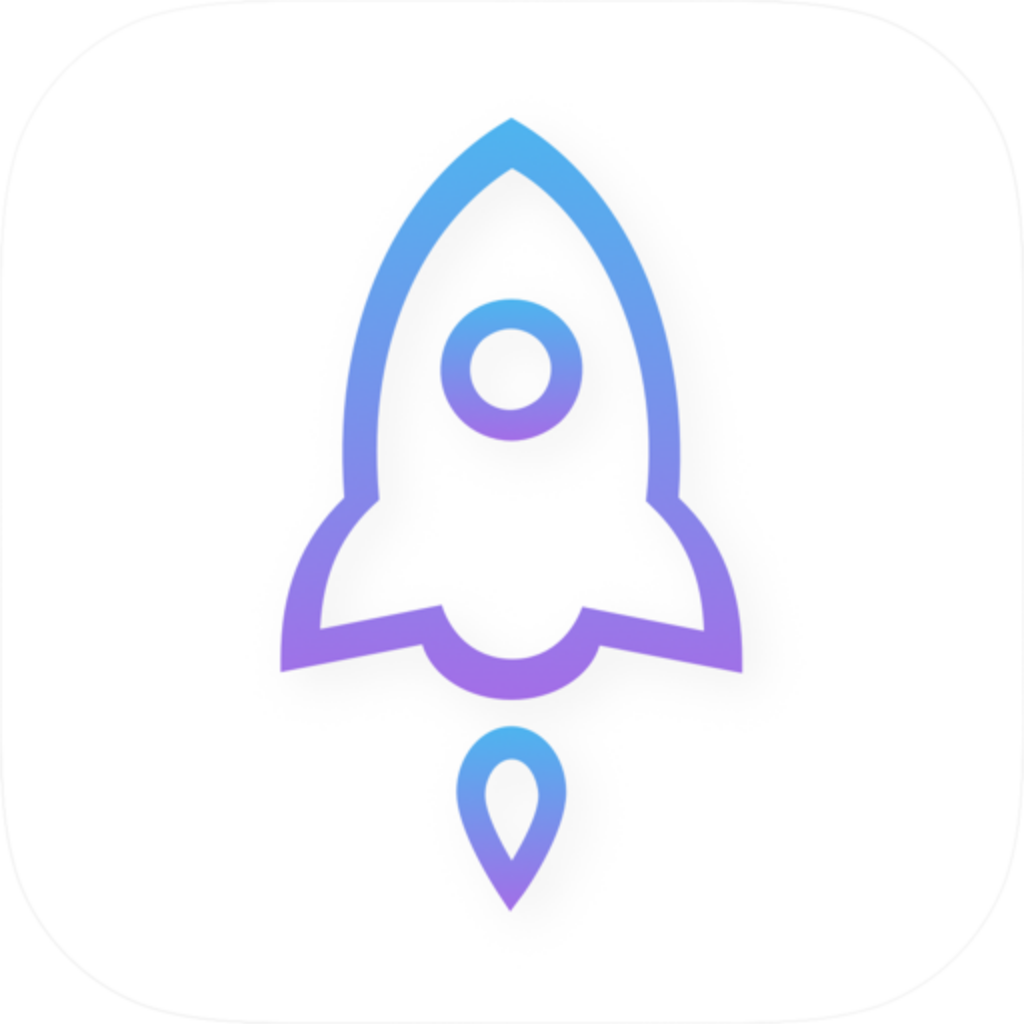
Check the official icon on the App Store
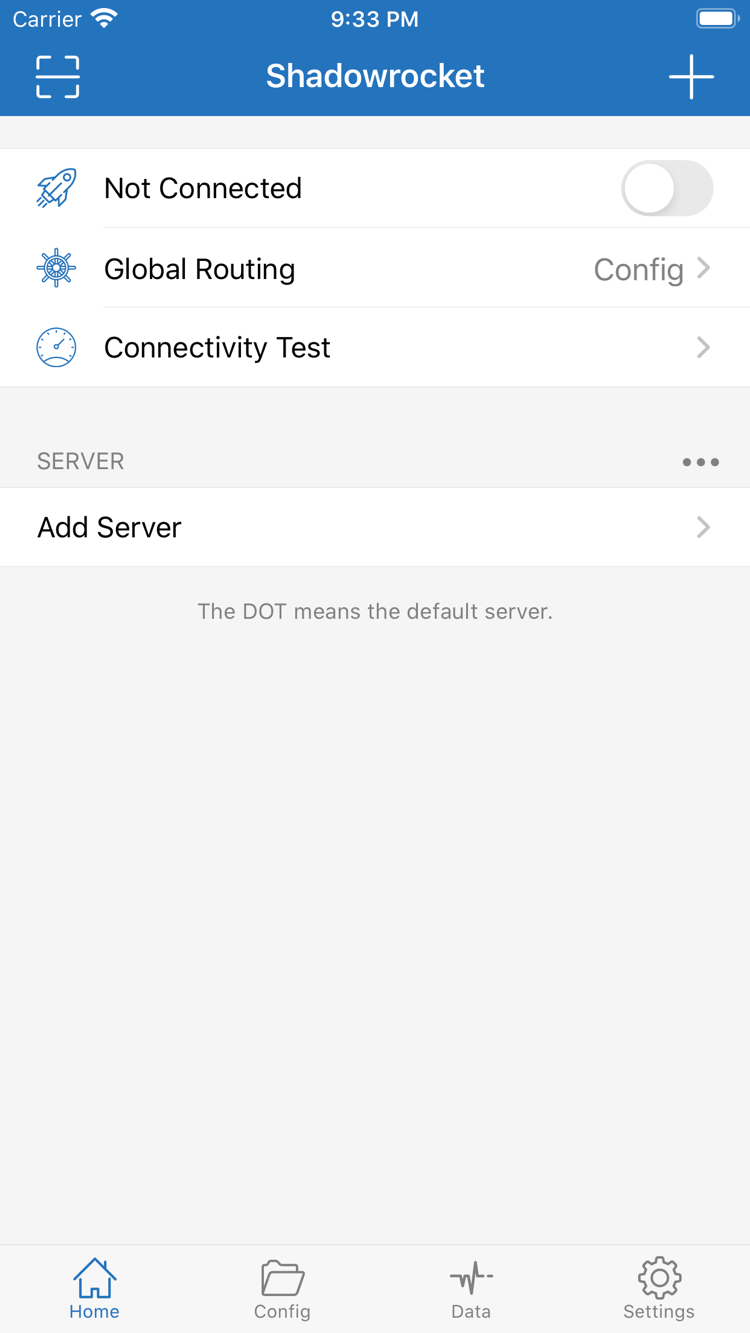
Shadowrocket is a closed-source commercial app available exclusively on the App Store. To verify the listing, check the developer, Shadow Launch Technology Limited, the official app icon, and app ID 932747118. The id932747118 in the product page URL is a fixed identifier. The app name or its position in search results alone is not enough to verify it.
This is the official Shadowrocket website and manual. The purchase guide explains how to verify and buy the app; the user guide covers importing and configuring your existing details. Neither replaces the actual App Store purchase page. Before paying, check the app name, developer, price, compatibility, and purchase terms shown in the store, especially that the storefront matches your account's region.
What the one-time purchase covers
The US storefront price is about $2.99; other storefronts show local currency. The price on the App Store product page is final. The purchase covers the Shadowrocket client, not a monthly connection service. Checking the app's price and checking whether a server is still active are separate matters; a purchase record does not confirm that a subscription is still valid.
The app purchase does not include a connection plan. This site does not provide, sell, or recommend nodes or subscriptions. Import and troubleshooting instructions assume that you already have your own subscription or server details. If the app has no entries, first gather your existing details, then follow the import guide.
Restore purchases and use across devices
Before reinstalling on an iPhone or iPad, confirm which Apple ID holds the purchase. Sign in with the same account and look for the app in your App Store purchase history. Refer to the App Store listing for universal purchase availability across devices. If the displayed status is unexpected, check your account, storefront, and device compatibility before paying again.
Restoring the app does not restore all connection settings. Before switching devices, check what the app supports through iCloud sync and keep a copy of your server details and configuration. After restoring, check each entry, the active Config, Global Routing, and system VPN authorization. Test access to a destination before enabling automatic connections.
App Store availability and account status
If you cannot find the app in search, use the product page first, then check your storefront region, content rating restrictions, and account payment status. A page that temporarily fails to load may relate to purchase eligibility, network access, or device compatibility; check each in turn. This device guide does not replace the App Store's compatibility check. Always refer to the listing for system requirements.
If the product page opens but you cannot complete the purchase, start with the message shown by the App Store. Follow the store's process for account or payment issues; changing DNS, rules, or server settings in the app will not affect your purchase history. Keep purchase issues separate from connection issues to avoid changing unrelated settings.
App updates and configuration maintenance
App updates are managed through the App Store. Use your device's store settings to enable automatic updates or check manually. See the product page for update details; this guide does not maintain a list of version numbers or release dates. If the interface changes, follow the fields and options shown in the current app, then refer to this manual to understand their purpose.
Updating the app, updating a subscription, and editing Config are three different actions. An app update does not verify your server details, and a subscription update does not necessarily change all rules. Before changing a configuration, save a usable copy and test the same destination afterward. For further help, look up the relevant symptom in Troubleshooting and follow the suggested checks.
Start troubleshooting connection issues with observable facts: is the current entry selected, has the system established a VPN connection, does the destination domain resolve, and which policy handled the request? A single test result or successfully opened page only describes one part of the situation. For DNS settings, REJECT rules, or protocol parameters, first identify whether you need to change resolution, matching, or transport. Then read the relevant section instead of enabling unrelated options all at once.
See the full verification guide, or visit Troubleshooting to check purchase, installation, import, and routing issues. For details on VLESS, WireGuard, Hysteria2, and other protocol fields, read the technical reference. Choose a protocol to match your existing server configuration, not just its name.