APP STORE · PURCHASE REFERENCE
Shadowrocket Genuine App Store Download
A paid app with a one-time purchase, available only on the App Store. Check store availability and verify the app before purchasing.
- App ID 932747118
- $2.99 one-time purchase · U.S. reference
- For iPhone and iPad
Developer: Shadow Launch Technology Limited
Refer to the App Store page for pricing, system requirements, and purchase terms.
01 / STOREFRONT
Store and account region
Shadowrocket isn’t available on the mainland China App Store. The store shown in the App Store is determined primarily by the country or region of the Apple Account used for purchases, not the device’s display language. Changing your device language to English does not change the store region for your purchase account. If the store says the app isn’t available after you open the product page linked here, check your account details rather than choosing a similarly named app from search results.
Check the account used for Media & Purchases
On your device, open Settings, tap your Apple Account at the top, then select Media & Purchases. The account used for purchases may differ from the one used for other services on your devices, so check the account shown here. Open the account settings and select Country/Region to confirm the store region. You may need to verify your identity first; menu names and paths can vary by device.
- Open Settings → Apple Account → Media & Purchases and check which account is being used for purchases.
- Open the account settings, then select Country/Region to see the current region.
- If you need to change the region, use the Country/Region settings here and review the requirements shown.
- Return to the App Store product page to check availability, local pricing, and payment details.
Before changing your country or region, review Apple’s notices about account balance, active subscriptions, payment methods, and other account matters. Seeing the option does not mean you meet the requirements; eligibility depends on Apple’s account rules and your account status. This page explains where to find the settings but cannot guarantee the outcome of a region change. Don’t overlook unresolved account issues just to make a single purchase.
If the product page opens but the purchase button is unavailable, check two things separately: whether the app is offered in that store, and whether your account can complete the payment. Availability depends on the store; payment can also be affected by your account, payment method, or device restrictions. Read the specific message before taking action. This is more useful for diagnosing the issue than repeatedly tapping Buy.
02 / IDENTITY CHECK
Verify the developer, icon, and app ID
Verify the app before confirming payment. Search results, similar icons, and alternative names are not reliable proof of authenticity. On the product page, check the developer name, official icon, and app ID together. If you find an app with a similar name or appearance, compare all the details instead of relying on its search result title.
- Developer: Check the developer listed on the product page. It should be Shadow Launch Technology Limited. If the full name is truncated, expand it or open the details to verify it; don’t rely on the first few words.
- Official icon: Look for the official artwork: a rocket with a blue-purple outline on a white background. The icon shown here matches the app’s official icon. Use it as a visual aid, but verify the other two details as well.
- App ID: The product page URL contains
id932747118, corresponding to app ID932747118. Don’t mistake other numbers on the page for the app ID.
Official Shadowrocket icon
Verify it alongside the developer name and app ID
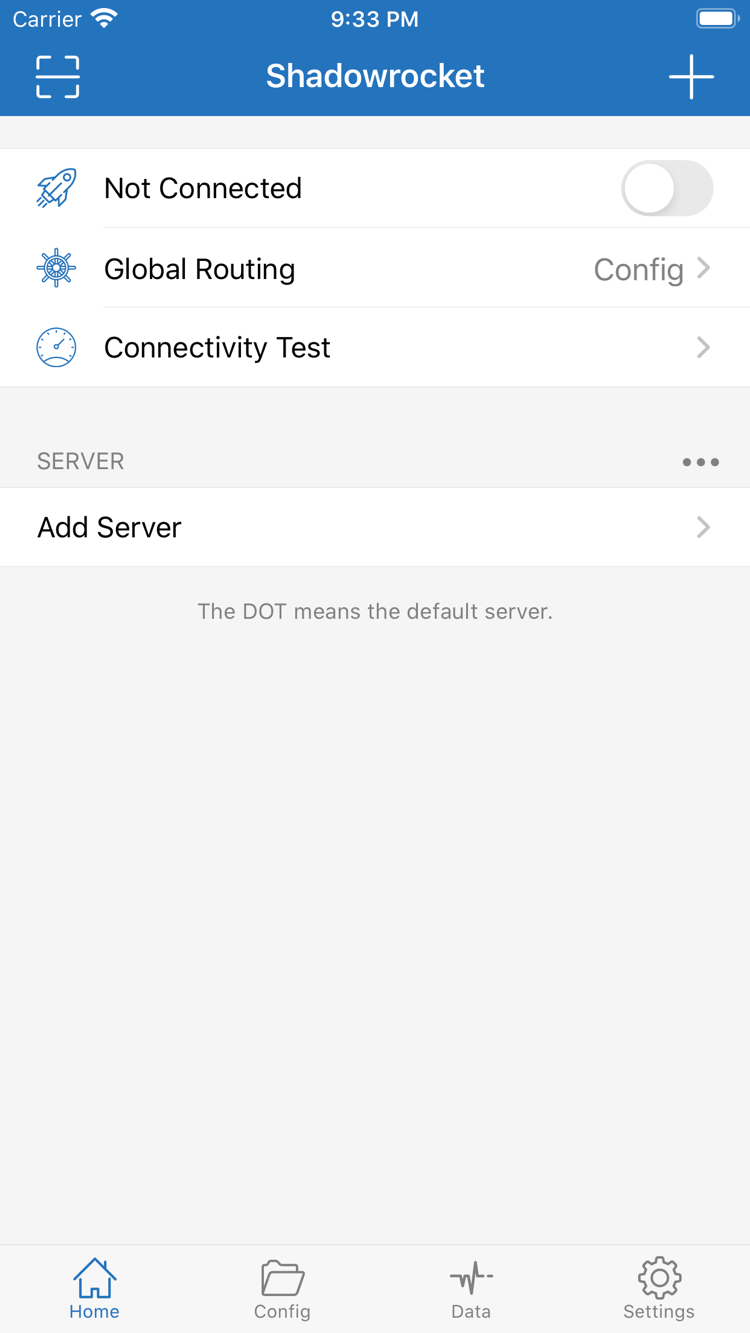
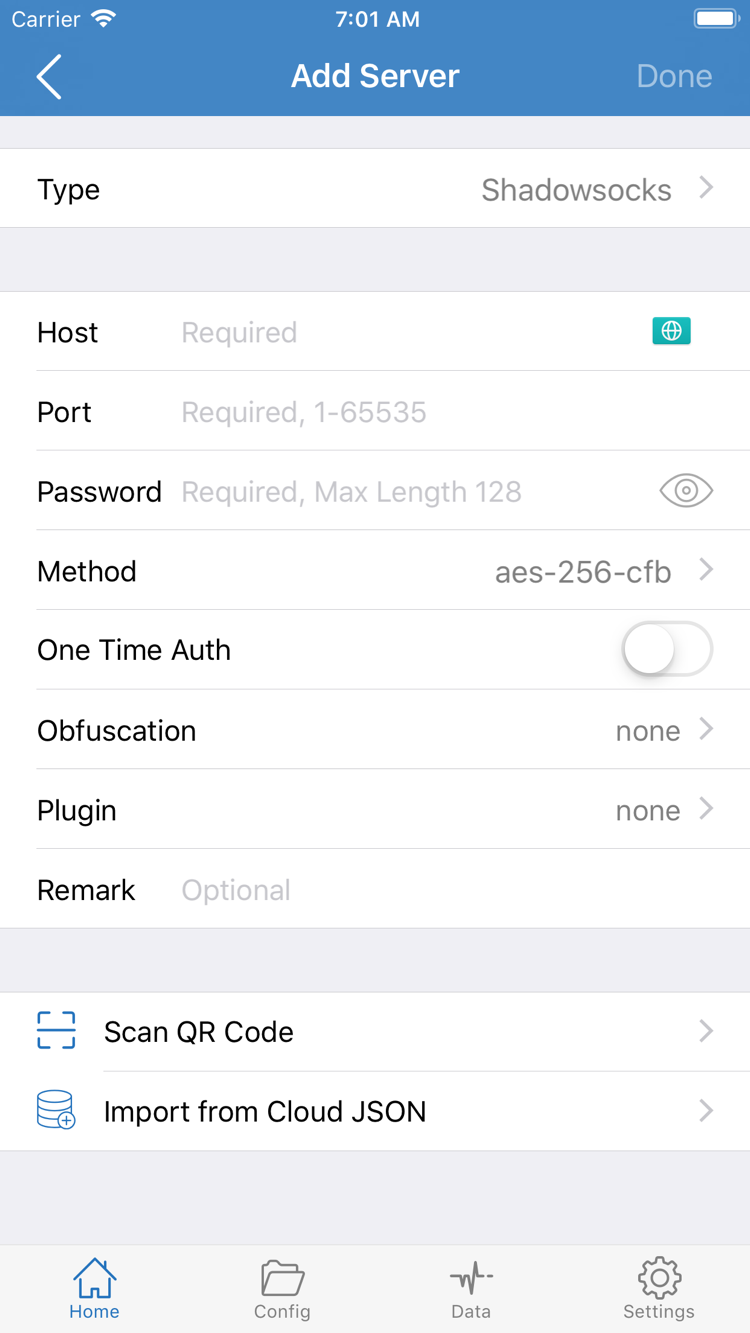
The two images alongside this text are official App Store screenshots showing Home and Add Server. They help identify the app’s interface and features; they do not provide server details or guarantee a working connection after purchase. The list shown after installation depends on your own information. Screenshots are not an offer of connection services.
In the Home screenshot, Not Connected, Global Routing, Connectivity Test, the SERVER group, and Add Server refer to connection status, routing mode, connection checks, and server management. The Add Server screenshot shows fields such as Type, Host, Port, Password, and Method, along with Scan QR Code and Import from Cloud JSON. Available fields depend on the selected Type; a field set shown in one screenshot is not required for every protocol.
The screenshots were submitted by the developer to the App Store and show the interface in English. Layout may vary by device size, display settings, and app updates. To verify the app, rely on the developer name, official icon, and app ID on the store page; for instructions, follow the wording in the current app.
03 / IPHONE
Buying and opening Shadowrocket on iPhone
On your iPhone, first confirm that the App Store is signed in to the Apple Account you want to use for the purchase, then open the product page linked here. Review the displayed price, compatibility, and app details, and complete any payment confirmation requested by the system. Refer to the App Store page for system requirements and check its current compatibility section; past references to an OS version do not guarantee compatibility with your device.
If you’ve bought Shadowrocket before, check your purchase history first. Purchases are tied to the Apple Account used at the time, so getting a new device does not automatically require another purchase. If the product page shows a price again, check whether the current purchase account matches the original one before proceeding. A sign-in for another device service does not prove that your purchase history has been restored.
Installing the app and authorizing a connection are separate steps
After installation, open the app and check Home before preparing to import your own subscriptions or server details. When you first start a connection, the system may ask to allow a VPN configuration to be added. This permission is needed to establish a system network connection. Confirm that the request comes from Shadowrocket, review the prompt, and complete the device’s verification steps. Allowing a configuration does not mean your server details are correct or that the connection has been verified.
If you’re not ready to add your own details, start by reviewing the interface and settings guide. After importing your information, check the server type, address, port, and authentication fields. Then select an appropriate Global Routing mode and verify the result using the connection log and actual access. Successful installation, an enabled connection switch, and working requests are different outcomes; check them separately when troubleshooting.
App updates are delivered through the App Store. Automatic updates depend on your App Store settings and conditions such as network access and available storage. Before reinstalling the app or troubleshooting an issue, save any configuration details you need. You can check the app’s update history on its App Store product page rather than relying on version information repeated elsewhere.
04 / IPAD
Installing on iPad and accessing purchase history
A single purchase with the same Apple Account can be used on iPhone and iPad, subject to the App Store’s terms. On your iPad, open your App Store account and purchase history, find Shadowrocket, and download it again. Refer to the App Store page for system requirements and universal purchase eligibility. If the purchase doesn’t appear, first check the account used for Media & Purchases instead of paying again.
The wider iPad screen can change how lists, details, and settings are arranged, especially in landscape orientation. Find features by their interface labels, such as Home, Config, Settings, and Add Server, rather than relying on a button’s exact position in a screenshot. The layout may differ, but the checks remain the same: identify the selected item type, review its required fields, and verify the connection result.
An available purchase history does not mean the server list and Config files are already synced between devices. When you first open the app on iPad, check whether your existing information appears before importing anything. If you use your own subscription or configuration, distinguish between a subscription URL, an individual server entry, and a Config file. They serve different purposes and should not be placed in the same import field just because each can be copied as text.
Compatibility with other Apple devices
The compatibility section on the same App Store product page also lists Mac, Apple TV, and Apple Vision. Before using Shadowrocket on one of these devices, check the product page on that device. Refer to the App Store page for system requirements and universal purchase eligibility. Controls and layouts may differ; the step-by-step instructions here are primarily for iPhone and iPad and may not apply to every device.
05 / PURCHASE HISTORY
Redownloading and restoring purchases after a device change
When you get a new device or reinstall the app, recover your purchase history first, then check your in-app data. Sign in with the Apple Account used for the original purchase, go to App Store → Account → Purchased, find Shadowrocket, and download it again. You usually won’t need to pay again. Menu labels may vary by system version; look for the app or purchase history in your account settings.
- On the new device, make sure Media & Purchases is using the original purchase account.
- Find Shadowrocket in your purchase history and verify the developer and app icon.
- After reinstalling, open Home and check the server list and existing content in Config.
- Import your own subscriptions, server details, and configuration files as needed, then complete connection authorization and verification.
If you can’t find the app in your purchase history, first check whether you’re signed in to a different purchase account. Then review your purchase records, hidden purchases, and current store availability. If the product page shows a price, don’t assume based on memory that your original payment has disappeared. Check which account made the purchase and find the record before following the App Store prompts to avoid unnecessary repeat steps.
Restoring the app does not restore all configuration data
Purchase history confirms your eligibility to use the app; subscriptions, individual server entries, rules, and Config files are in-app data. After restoring a backup to a new device, check each item rather than assuming everything is present because the app icon appears on the Home Screen. Before importing manually, review the existing list to avoid adding the same subscription twice and losing track of which set of entries is active.
Keep your own subscription URLs, server details, and required configuration files so you can set up the app again if you change devices. These details may contain access credentials, so store them securely. When troubleshooting or sharing screenshots, hide passwords, full subscription URLs, and other authentication details. An App Store purchase receipt is not server configuration, and a failed subscription update does not mean your app purchase is no longer valid.
Check the current App Store page and Family Sharing settings on your device to see whether Family Sharing is available and what account or device conditions apply. It is separate from redownloading a purchase with the same Apple Account, so don’t treat the two as the same feature. This page does not guarantee that a purchase can be shared directly between different accounts.
06 / ONE-TIME PURCHASE
Price and one-time purchase
Shadowrocket is a paid client available as a one-time purchase on the App Store, not a monthly client subscription. The U.S. reference price is $2.99; other storefronts show local pricing. The actual price, tax display, and purchase terms are shown on the App Store page at checkout. The reference price here does not apply uniformly to every country or region.
The client and connection details serve different purposes. The client reads settings, establishes connections, applies rules, and displays diagnostic information; your connection details determine which server to use and how to authenticate. Your existing subscription may have its own expiry date and renewal terms, which are separate from the app’s one-time purchase. Buying the client again will not fix an expired subscription, changed server address, or invalid credentials.
Before paying, check three things: that the product page is for app ID 932747118, whether the current Apple Account already has a purchase history, and whether the displayed price and payment method are as expected. If you have questions about a transaction after paying, check your App Store purchase history first. A connection failure in the app and a payment failure in the store are separate issues; repeating a payment won’t troubleshoot a connection.
After purchasing, installing, and verifying the app, continue with the setup guide and follow this sequence: import your existing details → choose Global Routing → start the connection → check the result. For help with rules or protocols, see the technical reference. Start with a basic setup you can verify, then change settings one at a time to make issues easier to pinpoint.
PURCHASE QUESTIONS
Purchase and installation FAQs
Why can’t I find Shadowrocket on the App Store?
Shadowrocket isn’t available on the mainland China App Store. Check the country or region of the Apple Account used for Media & Purchases, then review content and privacy restrictions, age ratings, and account status. Open the App Store product page linked here to verify app ID 932747118. Availability depends on what the store currently shows.
The product page opens, but the purchase or download won’t complete. What should I check?
Read the App Store message first. Check your account sign-in, payment method, pending purchases, available device storage, and network connection, then review the compatibility section. Refer to the App Store page for system requirements. If the payment status is unclear, check your purchase history before trying again.
Do I have to pay again when I get a new device or reinstall Shadowrocket?
Sign in with the Apple Account used for the original purchase, then look for Shadowrocket in your App Store account and purchase history. You can usually redownload it without buying it again. Reinstalling the app does not restore its in-app data, so check and import your own subscriptions, server details, and configuration files.
Can I install Shadowrocket on my iPad after buying it on my iPhone?
Use the same Apple Account on your iPhone and iPad, then find the app in the iPad App Store purchase history. Refer to the App Store page for system requirements and eligibility for universal purchase. Check separately whether your in-app configuration has been restored.
Can I use Shadowrocket on Mac, Apple TV, and Apple Vision?
The compatibility section on the same App Store product page lists Mac, Apple TV, and Apple Vision. Check the store page on your target device. Refer to the App Store page for system requirements and universal purchase eligibility; the product page remains the place to get the app.
How do I follow instructions when the app is in English?
This official manual keeps interface labels such as Home, Add Server, Config, and Global Routing in English, with explanations of what they do. Compare them with the official screenshots on this page, then read the setup guide. Field locations may vary by device and app update, so follow the labels in your current interface.